Zscaler App Connector runs as a hardened Linux VM. When it works, you forget it's there. When it doesn't, it fails silently — the VM powers on, gets partway through boot, and stalls trying to mount /var/log/. No shell, no SSH, no obvious recovery path from inside the OS.
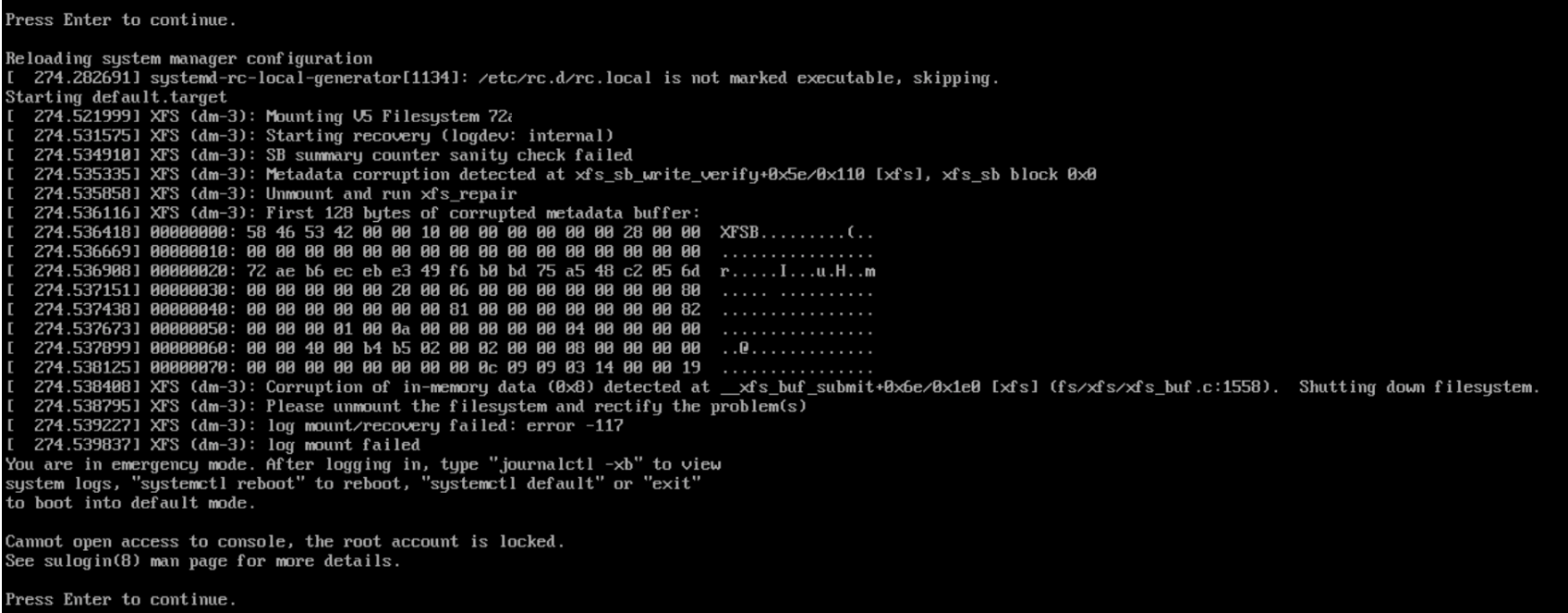
The culprit is almost always the same thing: the log volume has filled up or the XFS filesystem on it has corrupted, and the init system can't proceed. This post covers the recovery procedure from a live GParted environment.
What You'll Need
Boot the affected VM from the GParted Live ISO. This is a minimal Debian environment that gives you a shell and the LVM tools you need to access the logical volumes without the OS mounted. You don't actually need the GParted GUI for this — just the live environment and a terminal.
Step 1 — Discover the Volume Group
Once you're at a terminal in the GParted live environment, scan for physical volumes, volume groups, and logical volumes:
sudo pvscan
sudo vgscan
sudo lvscan
This tells you what LVM structures exist on the disk. The output will show one or more volume groups — typically something like rootvg.
Next, activate the volume groups so the logical volumes become accessible as block devices:
sudo vgchange -ay
Then list the available device mapper entries:
ls /dev/mapper/
You're looking for the logical volume that corresponds to /var/log. On Zscaler App Connector VMs this is typically rootvg-var_log, but confirm the exact name from your own lvscan output before proceeding — don't assume. There may also be an audit-related volume — that's a different mount, leave it alone.
Step 2 — Repair the XFS Filesystem
Run xfs_repair against the log volume:
sudo xfs_repair /dev/mapper/rootvg-var_log
If the repair fails with a dirty log error, force it with -L. This zeroes the log, which means any transactions that hadn't been committed are lost — acceptable here since the goal is to get the filesystem mountable, not recover log data:
sudo xfs_repair -L /dev/mapper/rootvg-var_log
Step 3 — Clear Bloated Logs
Once the filesystem is repaired, mount it and find what's taking up space:
sudo mkdir /mnt/logs
sudo mount /dev/mapper/rootvg-var_log /mnt/logs
cd /mnt/logs
ls -lah
The likely culprit is a rotated messages file — something like messages-20240318 — that has grown to several gigabytes. Log rotation should have caught it, but when a system is under load or repeatedly restarting, rotation doesn't always run cleanly.
Remove the large log files. The current messages file is fine to leave; it's the old rotated ones that accumulate:
sudo rm messages-*
Adjust as needed based on what ls -lah shows. Be conservative — only remove files you're confident are rotated logs, not active ones.
Step 4 — Unmount and Reboot
sudo umount /mnt/logs
sudo reboot
The VM should now boot normally. The App Connector service will start, connect to the Zscaler cloud, and resume proxying traffic.
Why This Happens
The log volume fills up completely, and when the OS can't write to /var/log/ on boot, it stalls. The GParted recovery path above is for when the VM is already unbootable — but if you catch it earlier, there's a better option.
If the VM is still running and you're seeing errors about no space on the log volume, don't reboot. Log in over SSH while you still can and clean the logs directly. A reboot at that point will land you exactly in the situation this post describes.
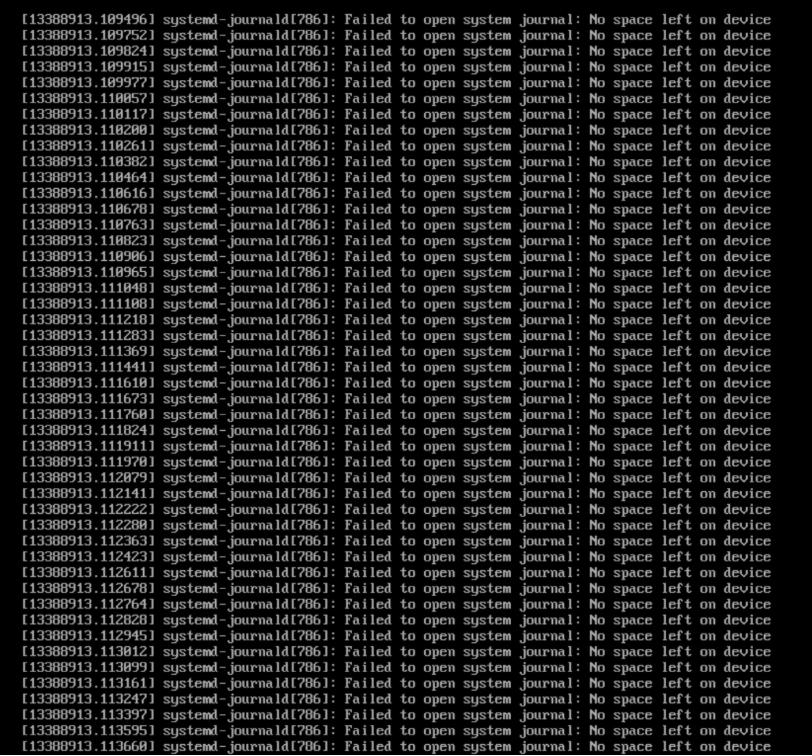
This is what the connector looks like while still running with a full log volume — systemd-journald spamming the console at high rate:
After a reboot with a corrupted XFS log volume, the VM drops into emergency mode and cannot recover on its own:
In our case, the likely trigger was a network outage. The App Connector lost connectivity and began logging errors at a high rate — faster than logrotate could rotate and compress them. By the time the outage resolved, the messages file had consumed the available space on the volume before rotation had a chance to run.